Passphrases overview
Each individual with a role (admin or Journalist) at a given SecureDrop instance must generate and retain a number of strong, unique passphrases. The section is an overview of the passphrases, keys, two-factor secrets, and other credentials that are required for each role in a SecureDrop installation.
Ideally, each admin and Journalist would only have to remember the passphrases to unlock the encrypted storage on their Journalist Workstation laptop.
Administrator
The administrator will be using an Admin Workstation configured to connect to the Application Server and the Monitor Server using Tor and SSH. The tasks performed by the admin will require the following set of credentials and passphrases:
The Qubes full disk encryption (FDE) password of the Admin Workstation, required to unlock system storage on boot.
The Qubes system user password for the Admin Workstation, required to log in.
Additional credentials, which we recommend adding to Tails’ KeePassXC password manager during the installation:
The Application Server and Monitor Server admin username and password (required to be the same for both servers).
The network firewall username and password.
The SSH private key and, if set, the key’s passphrase.
The OSSEC Alert Public Key.
The admin’s personal GPG public key, if you want to potentially encrypt sensitive files to it for further analysis.
The account details for the destination email address for OSSEC alerts.
The Onion Services values required to connect to the Application and Monitor Servers.
The admin will also need to have a way to generate Two-Factor Authentication codes.
Tip
We recommend using FreeOTP (available for Android and for iOS) to generate two-factor codes because it is Free Software. However, if it does not work for you for any reason, alternatives exist:
Google Authenticator for Android and iOS (proprietary)
authenticator for the desktop (Free Software)
And the admin will also have the following two credentials:
The secret code for the Application Server’s Two-Factor Authentication.
The secret code for the Monitor Server’s Two-Factor Authentication.
Journalist
The Journalist will be using a Journalist Workstation to view submissions with SecureDrop Inbox. The tasks performed by the Journalist will require the following set of passphrases:
The Qubes full disk encryption (FDE) password of the Journalist Workstation they use, required to unlock system storage on boot.
The Qubes system user password for the Journalist Workstation they use, required to log in.
The Journalist will also need to have a two-factor authenticator, such as an Android or iOS device with FreeOTP installed, or a YubiKey. This means the Journalist will also have the following credential:
The secret code for the Journalist’s Two-Factor Authentication.
Export Device
We recommend using encrypted USB flash drives for transferring files off of the Journalist Workstation.
For every export operation, the user will need to enter the USB flash drive’s encryption passphrase at least twice (on the computer they’re copying from, and on the computer they’re copying to). To make it easy for them to find the passphrase, we recommend storing it in the Journalist’s own existing password manager, which should be accessible using their smartphone.
If your organization is not using a password manager already, please see the Freedom of the Press Foundation guide to choosing one.
Passphrase best practices
All SecureDrop users—Sources, Journalists, and admins—are required to memorize at least one passphrase. This section describes best practices for passphrase management in the context of SecureDrop.
Do memorize your passphrase.
If necessary, do write your passphrase down temporarily while you memorize it.
Caution
Do store your written passphrase in a safe place, such as a safe at home or on a piece of paper in your wallet. Do destroy the paper as soon as you feel comfortable that you have the passphrase memorized. Do not store your passphrase on any digital device, such as your computer or mobile phone.
Do review your passphrase regularly. It’s easy to forget a long or complex passphrase if you only use it infrequently.
Tip
We recommend reviewing your passphrase (e.g. by ensuring that you can log in to your SecureDrop account) on at least a monthly basis.
Do not use your passphrase anywhere else.
If you use your SecureDrop passphrase on another system, a compromise of that system could theoretically be used to compromise SecureDrop. You should avoid reusing passphrases in general, but it is especially important to avoid doing so in the context of SecureDrop.
How to generate a strong, unique passphrase
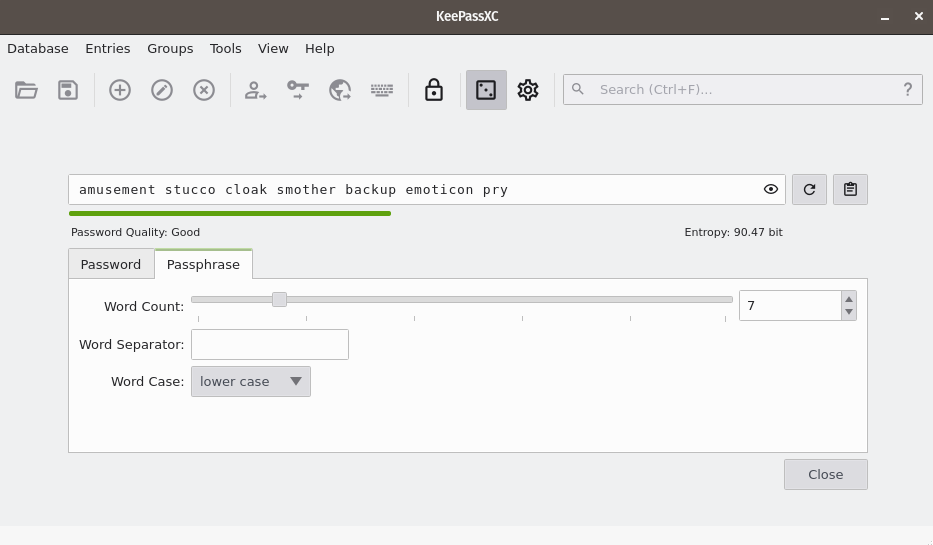
We recommend using a unique, 7-word passphrase for each case described above. We encourage each end user to use KeePassXC, an easy-to-use password manager included in QubesOS, to generate and retain strong and unique passphrases. The SecureDrop installation includes a template that you can use to initialize this database, which will be explained when you set up your first *Admin Workstation*.
Using KeePassXC to generate a passphrase
To create a random passphrase using KeePassXC, launch the application, then click the dice icon. Then click the Passphrase tab and set the Word Count to 7. You can optionally set a Word Separator, for example a space or hyphen.