Working with submissions#
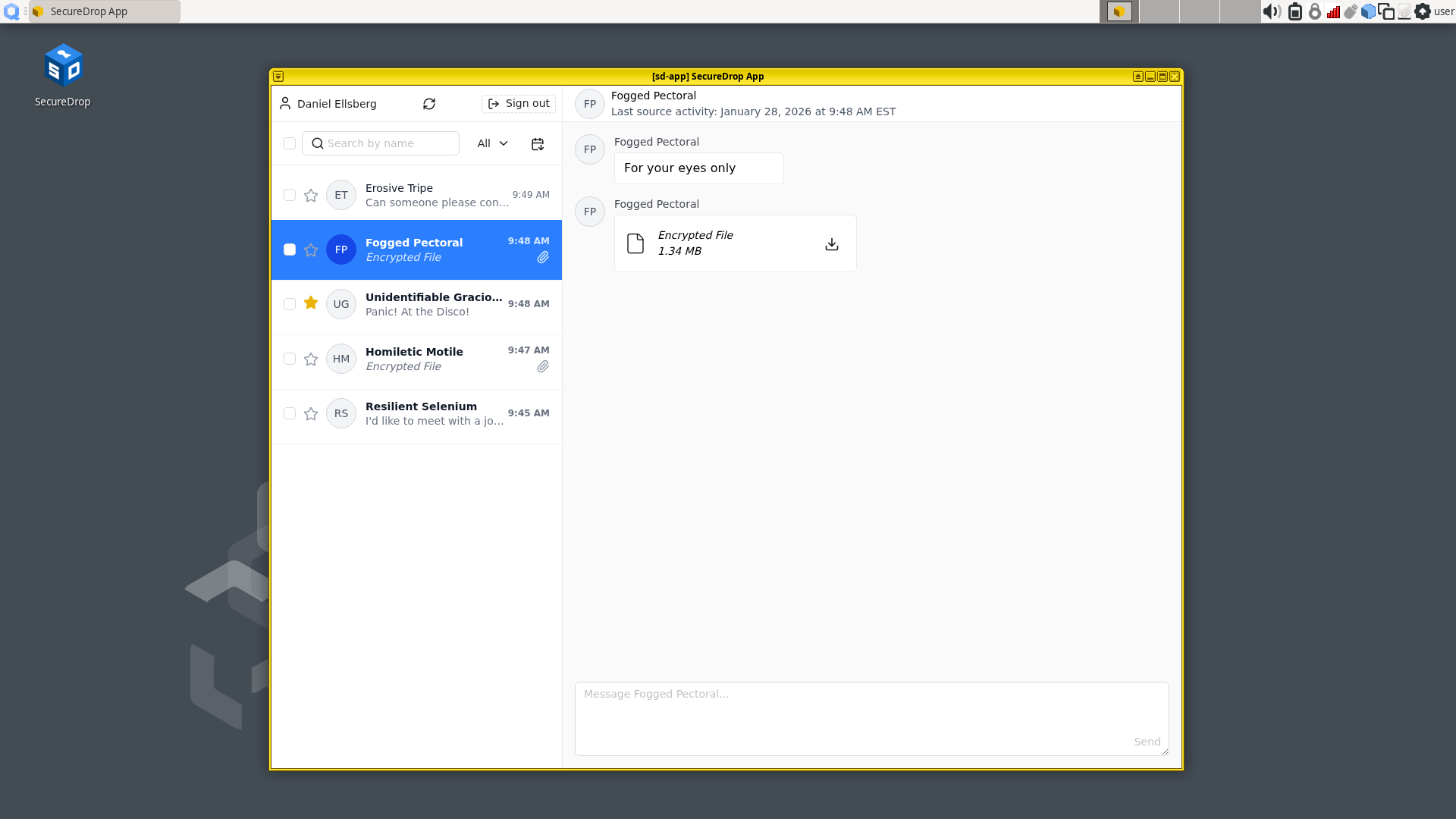
When a Source submits files, you will see a Download button in the conversation flow, a file size, and light-gray text that says “Encrypted File.”
Downloading#
To download a file, click the Download button. An animated spinner will indicate that the file is downloading, and a progress bar will indicate the download’s progress:
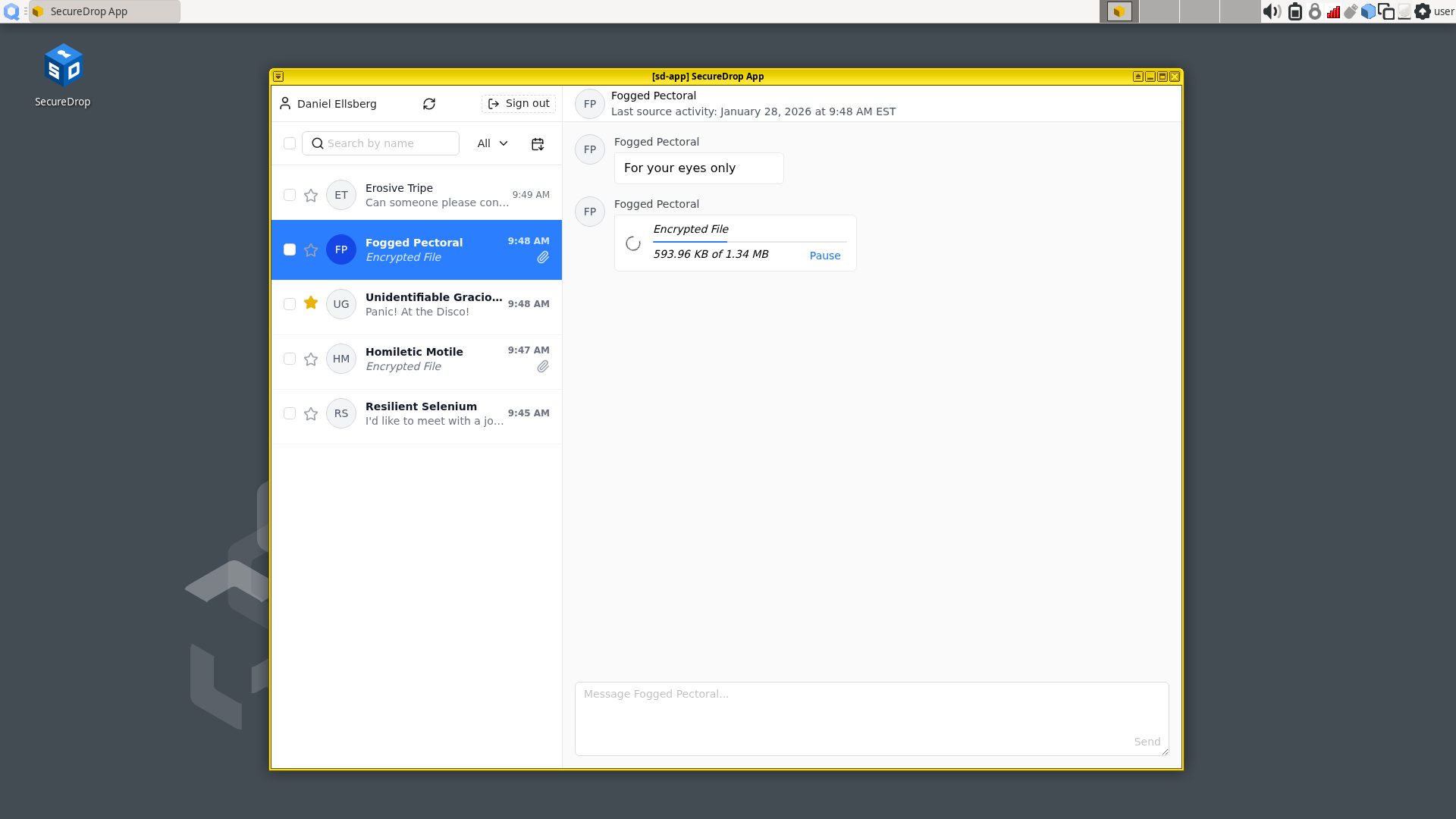
If necessary, you can pause the download by clicking “Pause,” and resume the download later with “Resume.”
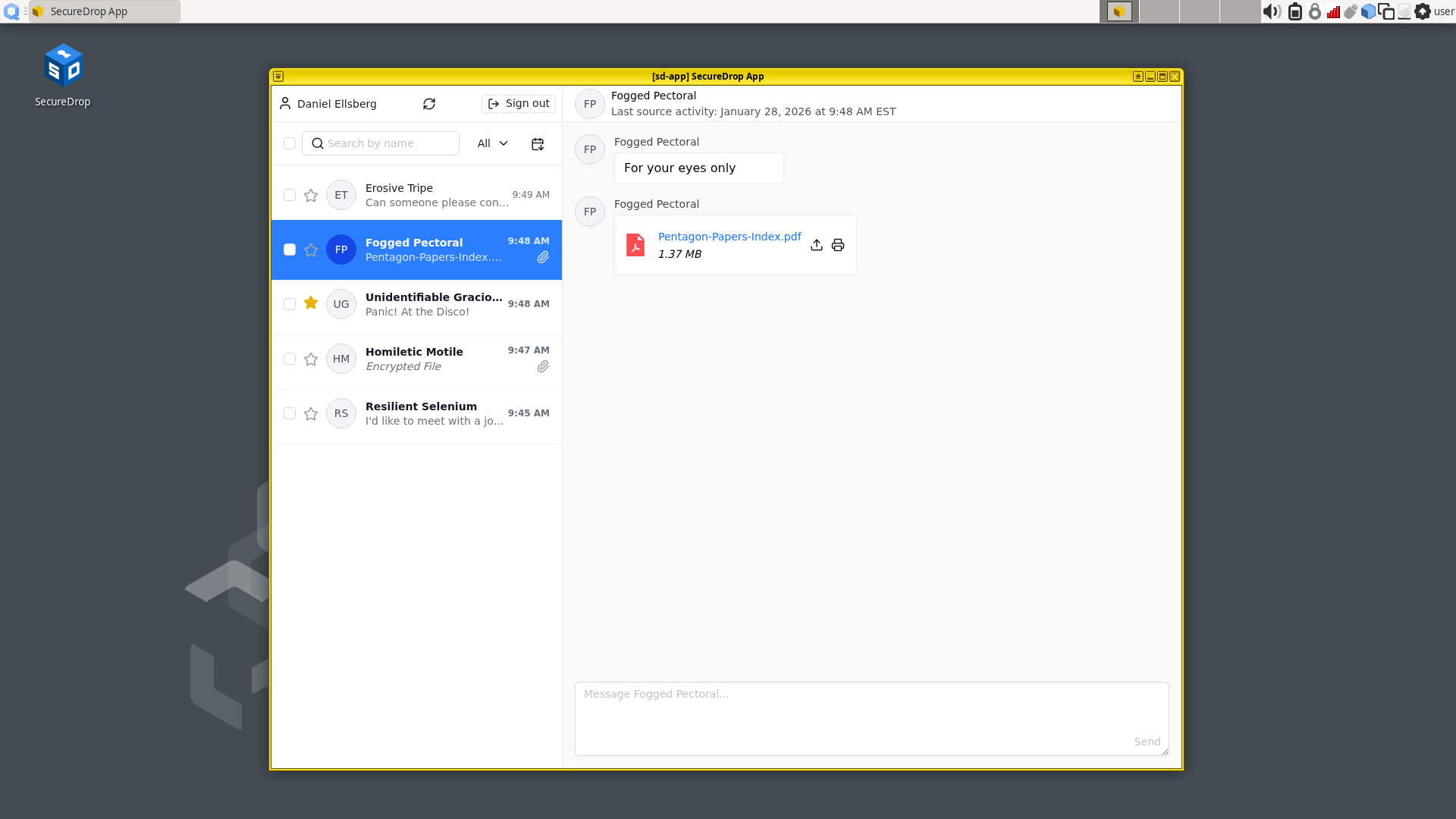
Once the file has been downloaded and decrypted, the filename will be visible, as will the action Export and Print. The displayed file size may increase after the download is complete, because the SecureDrop Client automatically decompresses the downloaded file.
Viewing submissions on the SecureDrop Workstation#
To view a downloaded submission, click its filename. This will open the file in a temporary environment, called a “disposable” qube. The file you clicked on will open in a new window with a different colored border and a window title prefixed with “disp” (meaning disposable).
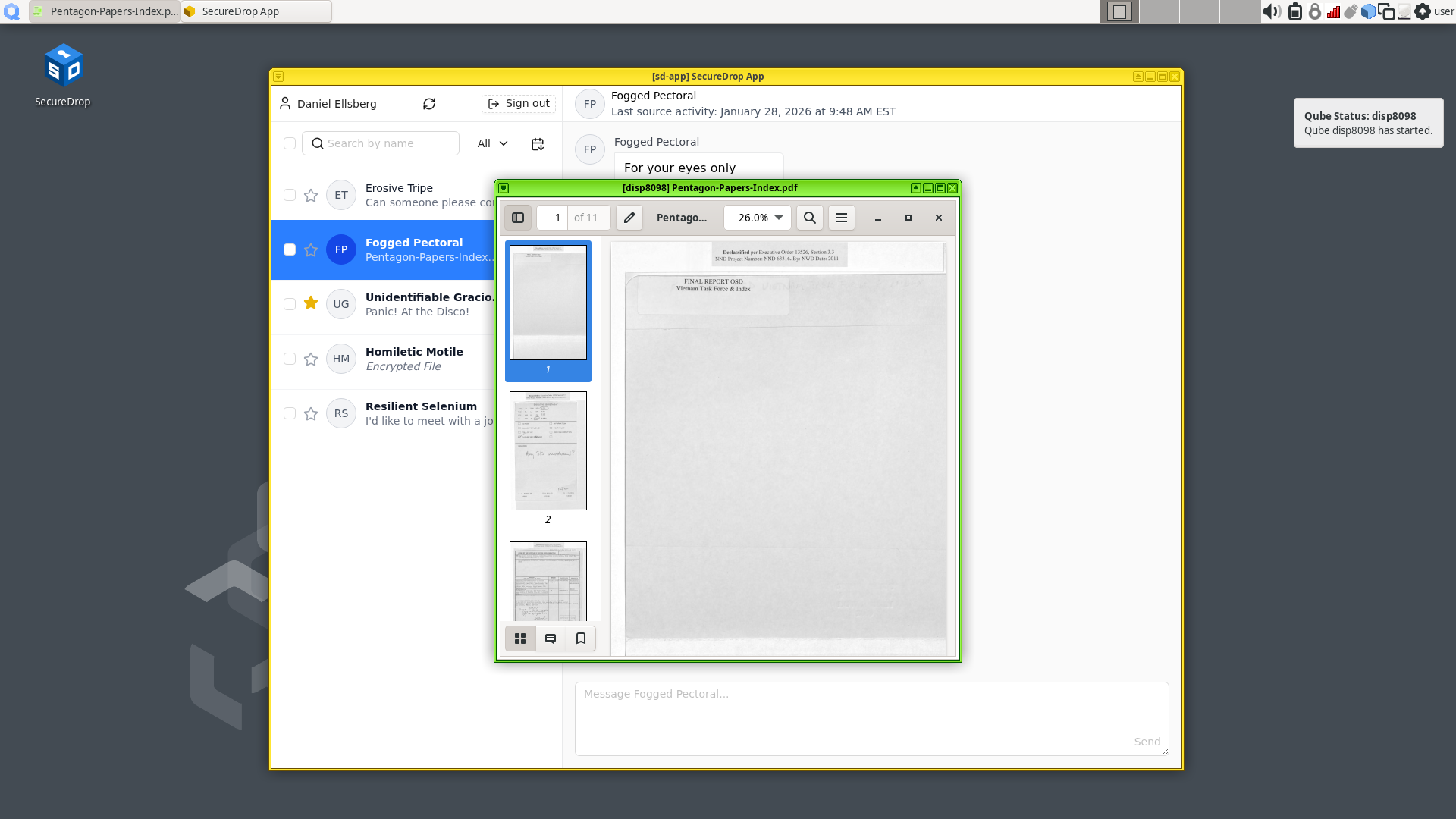
This disposable qube is a special isolated environment; it does not have internet access, and isolates the files that you are viewing from other sensitive files and applications on the SecureDrop Workstation.
Supported filetypes#
The following filetypes are currently supported for viewing on the SecureDrop Workstation:
.txt, .csv, .pdf
Microsoft Office files (.doc, .docx, .xls, .xlsx, .ppt, .pptx)
OpenDocument files (.odt, .ods, .odp)
Audio: .mp3, .mp4, .mpeg, .wav, .ogg (Ogg Vorbis)
Video: .mp4, .webm, .mov (Quicktime), .avi (Audio Video Interleave - Microsoft), .wmv (Windows Media Video)
Image: .gif, .png, .jpeg, .tiff, .svg, .ico, .webp, .heic, .avif
Compressed archives: .zip, .tar.gz (although printer support for files inside an archive is still to be implemented)
A full list of supported filetypes can be found here.
Tip
In Qubes, window border colors are used to signify different qubes.
Printing submissions from the SecureDrop Workstation#
To print a document, a compatible printer must be plugged into the computer’s USB port.
Click “Print” button and wait for
sd-devicesqube to start.You will prompted to attach your printer.
A Print Document dialog will appear, from which you can configure different print options before printing the document.
Exporting submissions from the SecureDrop Workstation#
Important
SecureDrop does not scan for or remove malware. If the file you received contains malware targeting the operating system and applications running on your everyday workstation, copying it in its original form carries the risk of spreading malware to that computer. Make sure you understand the risks, and consider other methods to export the document (e.g., print).
If you must copy a file from your SecureDrop Workstation to another computer or device in digital form, our recommendation is that Journalists are provided with an Export Device, drive which is encrypted using LUKS or VeraCrypt. These instructions assume that you are following the recommended workflow. If you are unsure, ask your Administrator.
Exporting to an Export Device#
Currently, a LUKS- or VeraCrypt-encrypted USB flash drive is required for exporting submissions.
Insert the USB flash drive and wait for the
sd-devicesqube to start.If your drive is using VeraCrypt, you will need to unlock it manually:
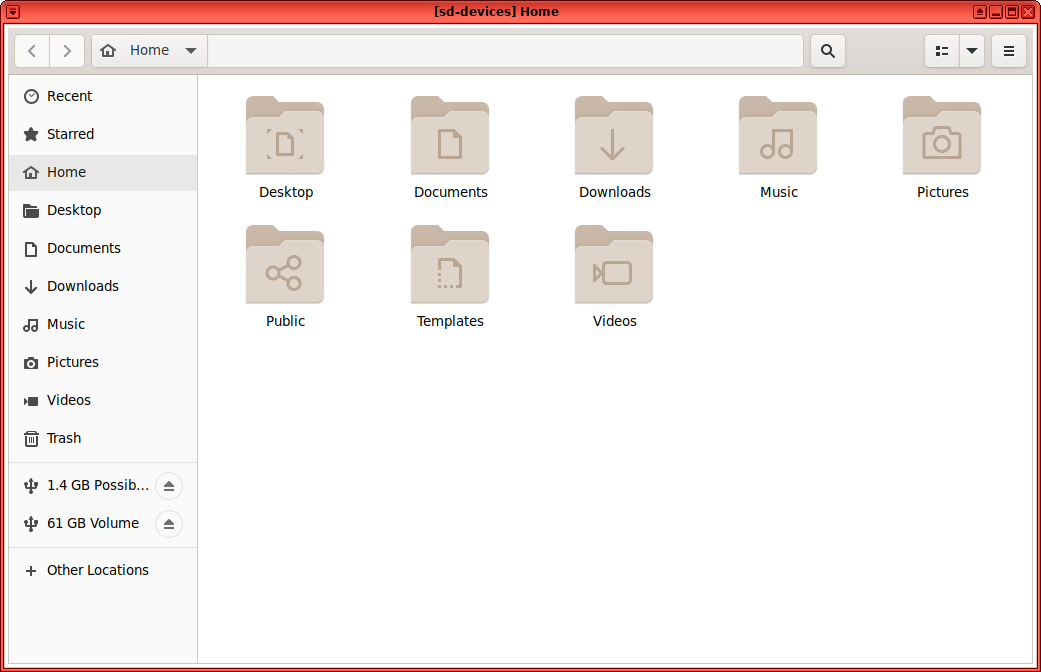
Open the file menu by clicking on the Qubes Application menu
 (in the top left), select sd-devices and click Files.
In the left sidebar, there should be an entry labeled # GB Possibly Encrypted, click it.
You will be prompted for the password configured for this USB flash drive:
Volume type: leave both unchecked
PIM: leave empty
Password: drive’s password
Forget password immediately: selected
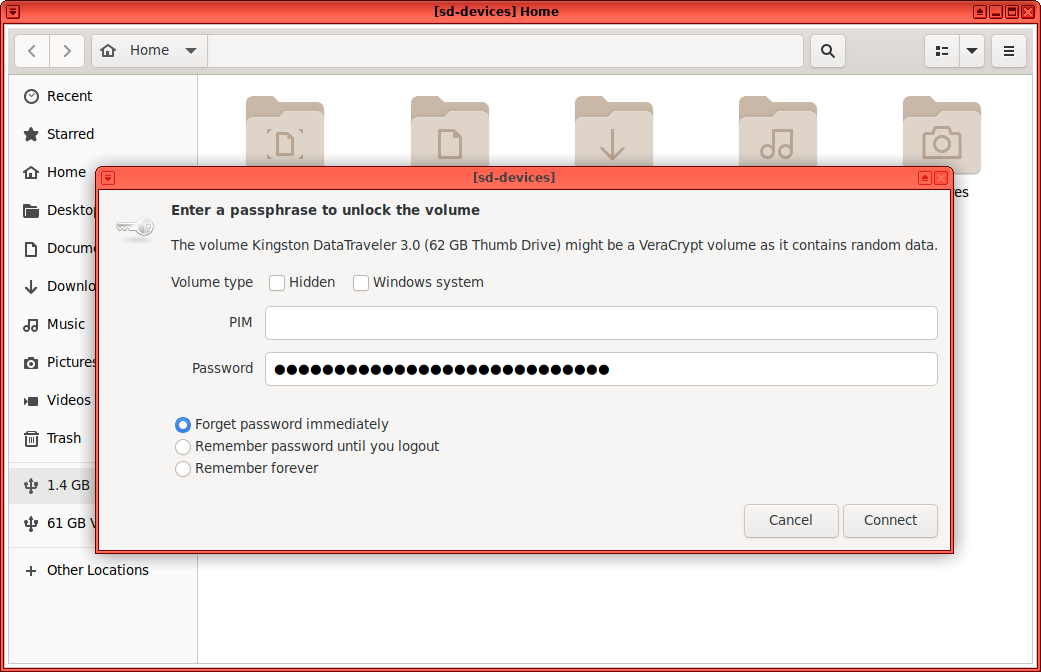
Click Connect.
Back in your Source’s conversation, click Export.
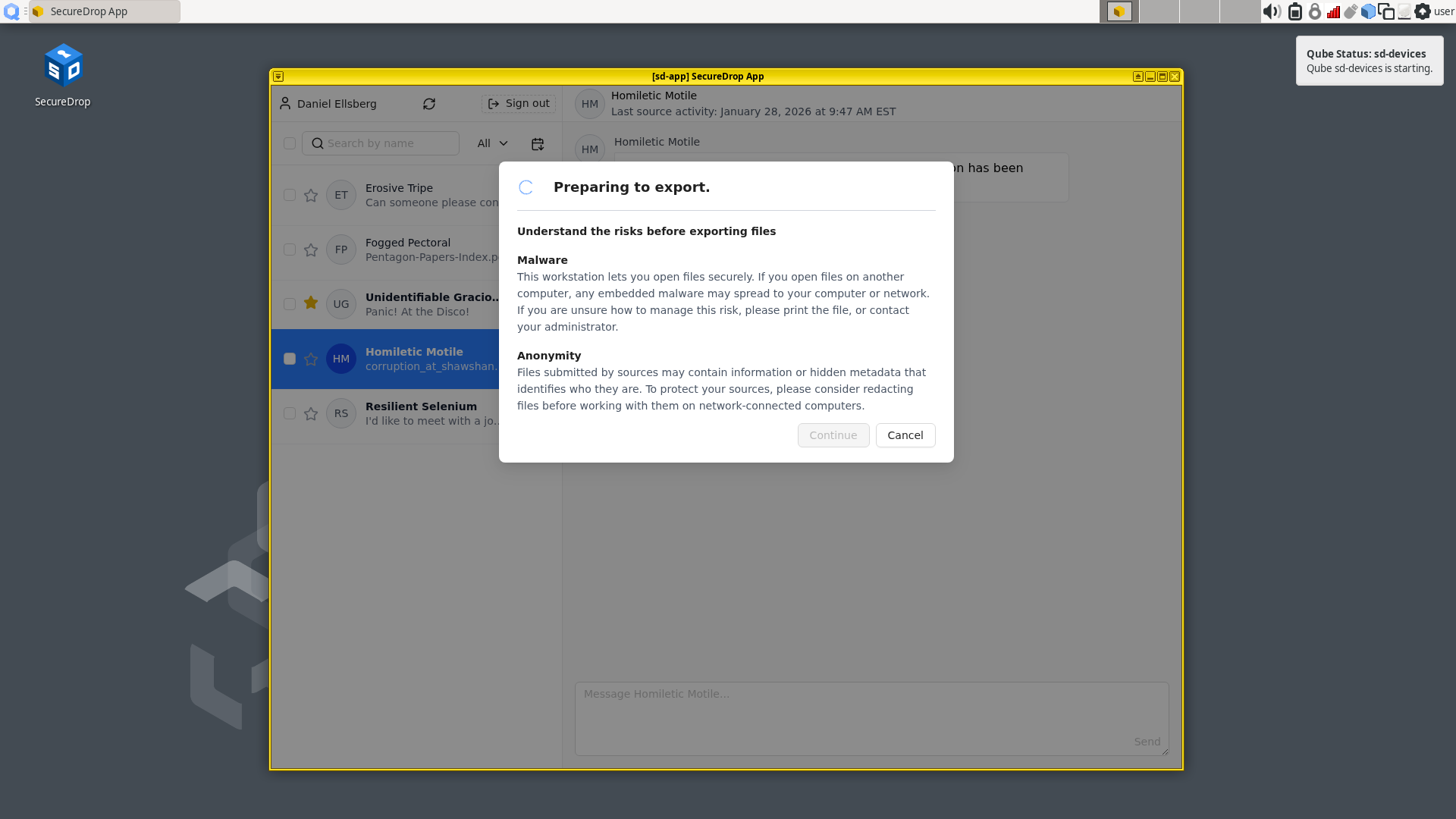
If you have not already unlocked your USB flash drive, you will be prompted for the password configured for this USB flash drive.
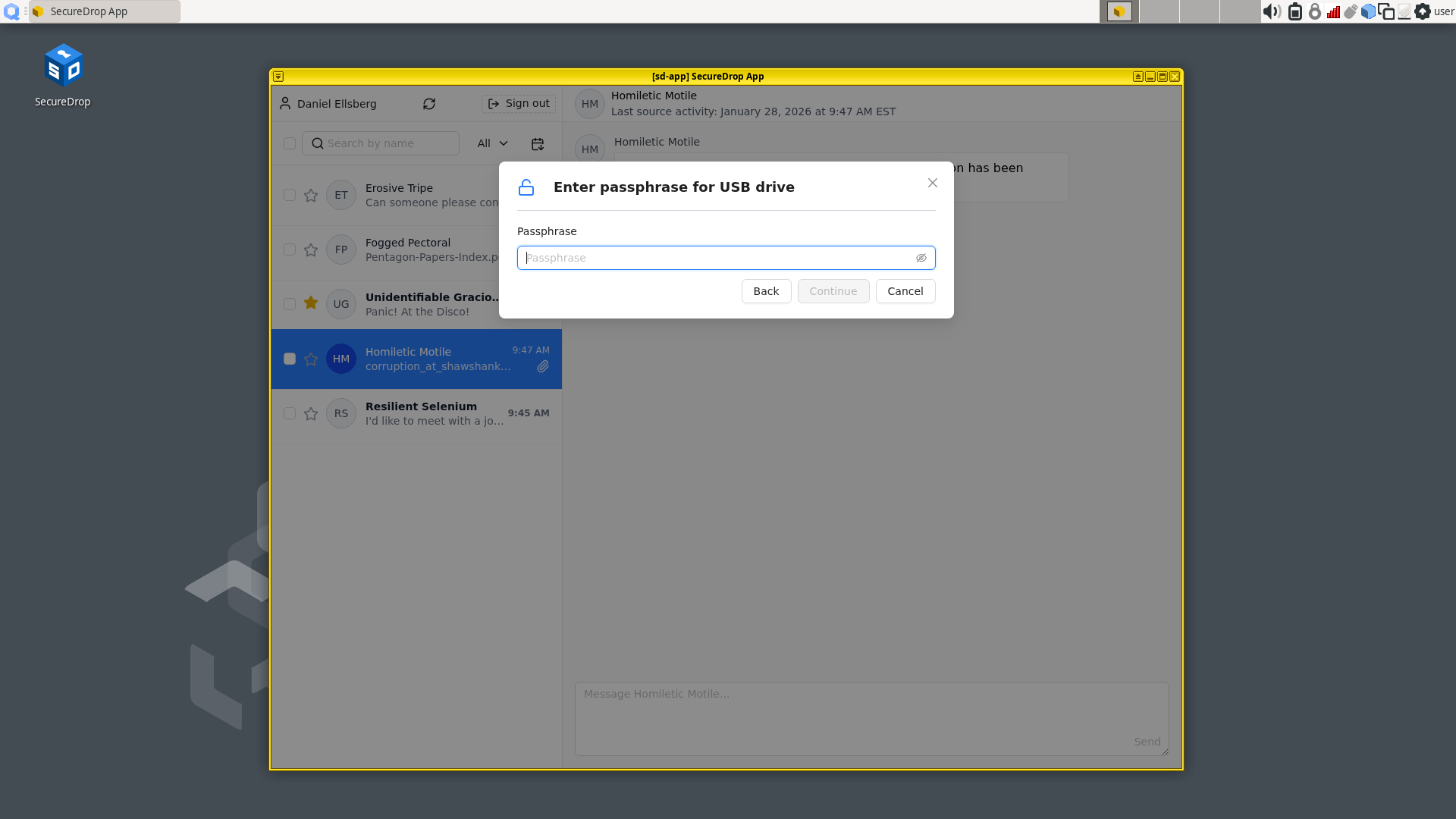
Once you see a message informing you that the export was successfully completed, you can safely unplug the USB flash drive. Alternatively, you can leave the drive plugged in and export additional files.
Decrypting and preparing to publish#
Note
To decrypt a VeraCrypt drive on a Windows or Mac workstation, you need to have the VeraCrypt software installed. If you are unsure if you have the software installed or how to use it, ask your Administrator, or see the Freedom of the Press Foundation guide for working with VeraCrypt.
To access the Export Device on your everyday workstation, follow these steps:
If your Export Device has a physical write protection switch, make sure it is in the locked position.
Plug the Export Device into your everyday workstation.
Launch the VeraCrypt application.
Click Select Device and select the Export Device, then click OK.
Click Mount.
Enter the passphrase for your Export Device. You should find this in your own personal password manager.
Open the Export Device in your operating system’s file manager, and copy the contents of interest to your everyday workstation.
When you are done, switch back to the VeraCrypt window, and click Dismount.
You are now ready to write articles and blog posts, edit video and audio, and begin publishing important, high-impact work!
Tip
Check out our SecureDrop Promotion Guide to read about encouraging sources to use SecureDrop.
Securely erase an Export Device#
Due to the underlying technology of USB flash drives, Export Devices are likely to retain recoverable portions of files that have been stored on them even if those files have been deleted.
To protect against the possibility that a compromised encryption password will yield access to traces of previously exported files, you should securely erase your Export Devices on a regular basis. You may also wish to do this on a case-by-case basis after handling particularly sensitive files or if you believe a decryption password may be compromised.
Securely erasing an Export Device can only be done by re-formatting and re-encrypting the USB flash drive with a new encryption password. You can follow the same steps used to initially create the Export Device, or contact your Administrator.
You may also choose to destroy the drives by physical means, such as using a hammer or purpose-built shredder to pulverize the drive.
Safely working with submissions outside the SecureDrop Workstation#
Risks from malware#
SecureDrop does not scan for or remove malware in submissions you receive. There are important steps you can take to protect yourself:
Keep your SecureDrop Workstation up-to-date.
Print documents from the SecureDrop Workstation instead of exporting them digitally, whenever possible.
Printing documents prevents the proliferation of malware to your everyday workstation, and eliminates most categories of embedded metadata. Note that printing a document may still preserve watermarks, printer codes, steganographically encoded data, or other information not visible to the naked eye.
Consult with your Administrator or your digital security staff before copying files digitally.
If you must copy a file in digital form (because of its format, the volume of information, or for other reasons), we recommend taking the time to consult with technical experts within the organization.
Tip
Converting files to simpler formats (e.g., PDF to PNG) can help reduce the risk of malware. Tails provides both graphical and command-line utilities that can be used for this purpose.
Never scan QR codes embedded in documents using a network-connected device.
QR codes can contain malicious links that your device will automatically visit. This can alert third-parties to your actions, reveal the identities of your Sources, and breach the isolation benefits of using Qubes.
In general, be careful when opening any links provided in a SecureDrop submission. If you are unsure if a link is safe to click, you should consult internally, or contact Freedom of the Press Foundation for assistance.
Don’t photograph submissions using your smartphone, and be careful with all digital photography.
Many smartphones are configured to back up photographs to cloud services, immediately or intermittently; newer digital cameras have similar functionality. Not all backup settings may be visible to you.
Any digital photograph will include certain metadata by default, which may reveal sensitive information about your SecureDrop usage patterns (potentially including GPS coordinates) to anyone who gains access to the file.
Fully mitigating the risks of malware received via SecureDrop is beyond the scope of this documentation. If you have questions, you can contact us. Please do NOT disclose details about the contents of any submission you have received.
Tip
This is only a very limited introduction. Freedom of the Press Foundation publishes and maintains digital security guides for journalists, many of which relate to these topics, and offers digital security training for news organization staff.