
Onboard Journalists#
At this point, the only person who has access to the system is the Administrator. In order to grant access to Journalists, you will need to do some additional setup for each individual Journalist.
Provision SecureDrop Workstation#
Add an account on the Admin Interface#
Finally, you need to add an account on the Admin Interface so the Journalist can log in and access submissions.
Adding users#
After logging in, you can add new user accounts for the Journalists at your organization who will be checking the SecureDrop Inbox. Make sure the Journalist is physically in the same room as you when you do this, as they will have to be present to enable two-factor authentication. SecureDrop supports the use of either a smartphone authenticator app or a Yubikey for two-factor authentication. If an app is to be used, the Journalist should install it before proceeding with the account setup.
Tip
We recommend using FreeOTP (available for Android and for iOS) to generate two-factor codes because it is Free Software. However, if it does not work for you for any reason, alternatives exist:
Google Authenticator for Android and iOS (proprietary)
authenticator for the desktop (Free Software)
Click Admin in the top right corner of the page to load the Admin Interface.
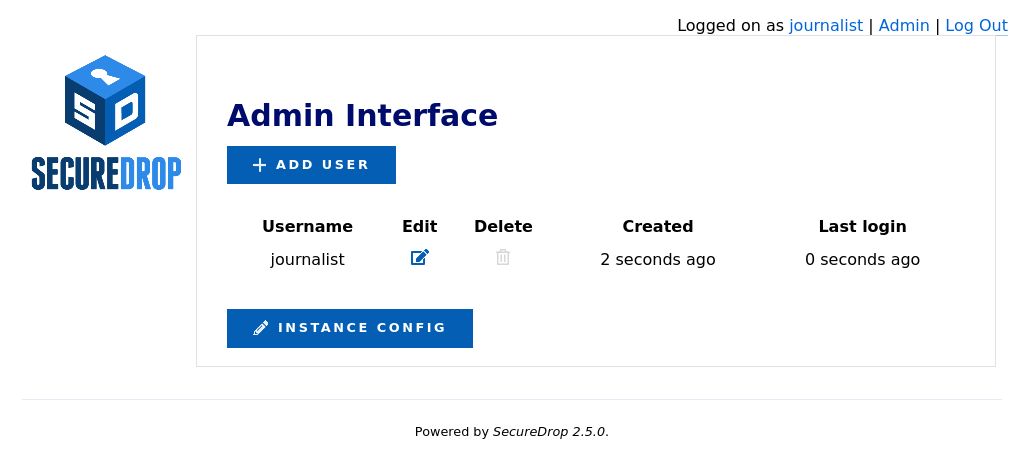
Click Add User to add a new user.
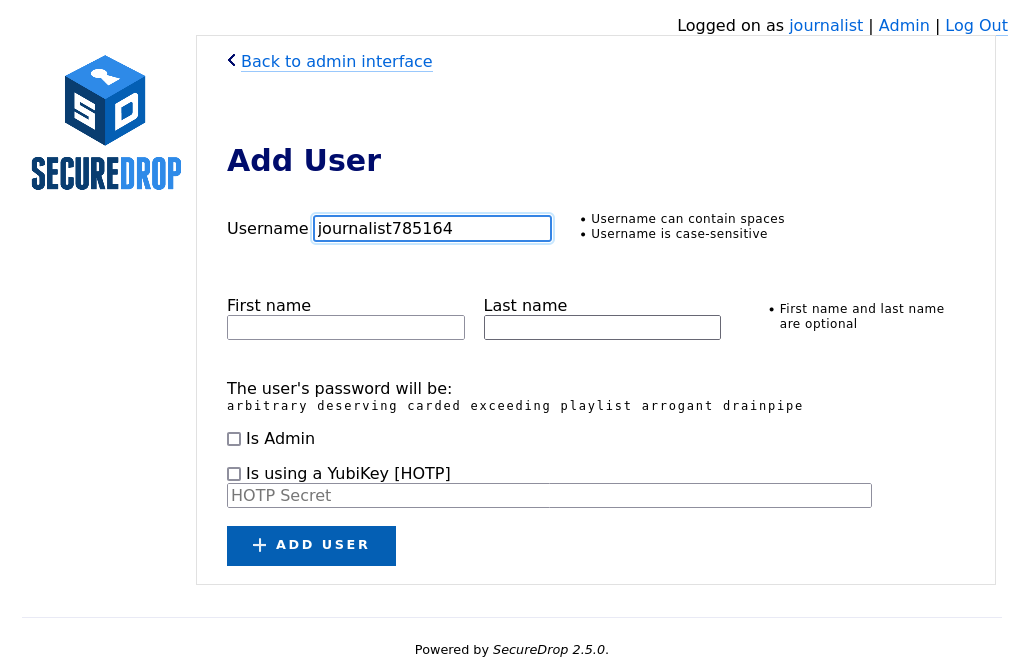
Hand the keyboard over to the Journalist so they can create their own username.
Once they’re done entering a username for themselves, have them save their pre-generated Diceware passphrase to their password manager.
If the new account should also have admin privileges, allowing them to add or delete other journalist accounts, select Is Admin.
Finally, set up two-factor authentication for the account, following one of the two procedures below for your chosen method.
Note
The username deleted is reserved, as it is used to mark accounts which have been deleted from the system.
FreeOTP#
If the Journalist is using FreeOTP or another app for two-factor authentication, click Add User to proceed to the next page.
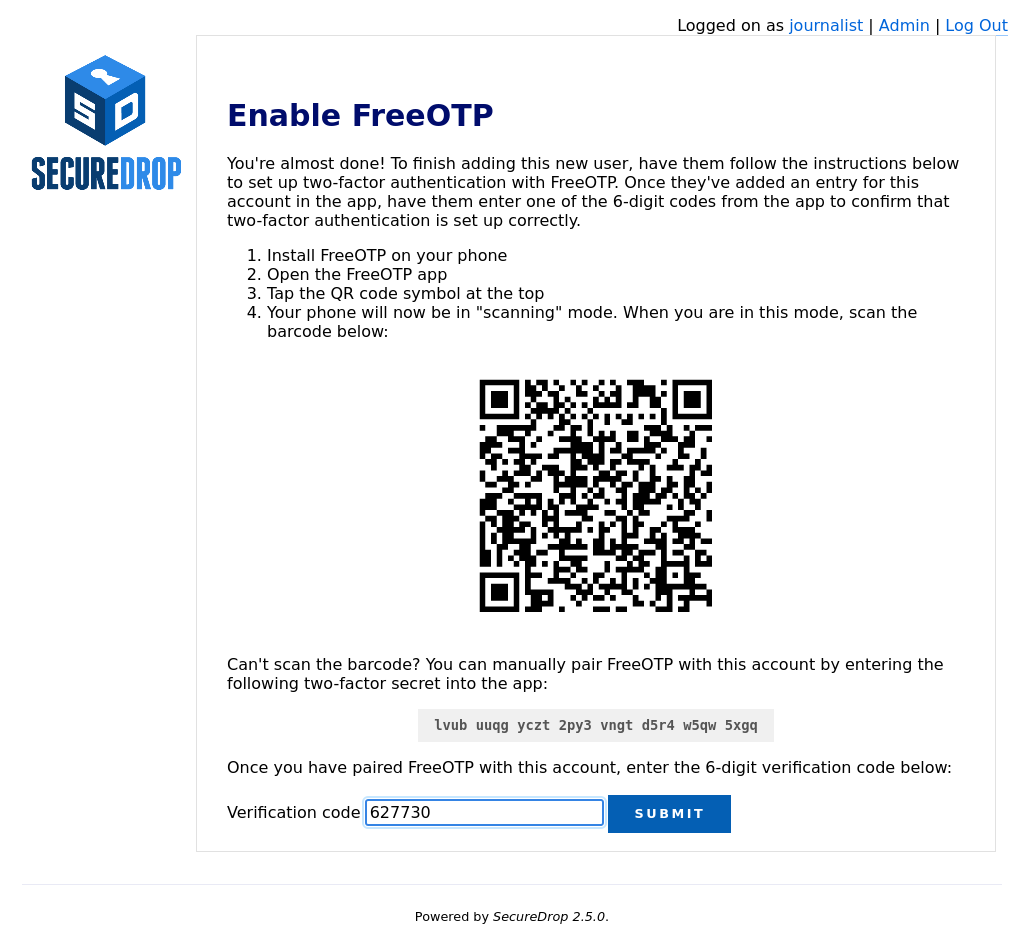
Next, the Journalist should open FreeOTP on their smartphone and scan the barcode displayed on the screen.
If they have difficulty scanning the barcode, they can tap on the icon at the top that shows a plus and the symbol of a key and use their phone’s keyboard to input the two-factor secret into the
Secretinput field, without whitespace.Inside the FreeOTP app, a new entry for this account will appear on the main screen, with a six-digit number that recycles to a new number every thirty seconds. The Journalist should enter the six-digit number in the Verification code field at the bottom of the Enable FreeOTP form and click Submit.
If two-factor authentication was set up successfully, you will be redirected back to the Admin Interface and will see a confirmation that the two-factor code was verified.
Note
If the QR code for setting up two-factor authentication in your mobile authenticator app is not displayed, it may be blocked by Tor Browser. You can set Tor Browser’s security level to Standard by clicking on the Shield icon. Alternatively, you can manually type in the two-factor secret (in FreeOTP, use the Add token option from the menu).
YubiKey#
If the Journalist wishes to use a YubiKey for two-factor authentication, select Is using a YubiKey. You will then need to enter their YubiKey’s OATH-HOTP Secret Key. For more information on how to retrieve this key, read the YubiKey Setup Guide.
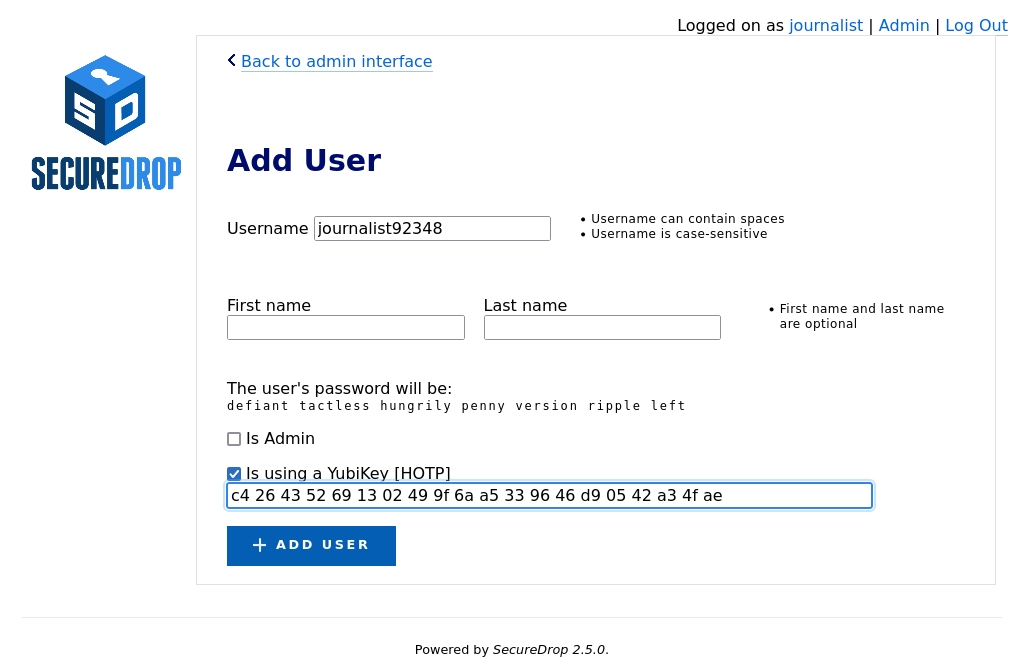
Once you’ve entered the Yubikey’s OATH-HOTP Secret Key, click Add User. On the next page, have the Journalist authenticate using their YubiKey, by inserting it into a USB port on the workstation and pressing its button.
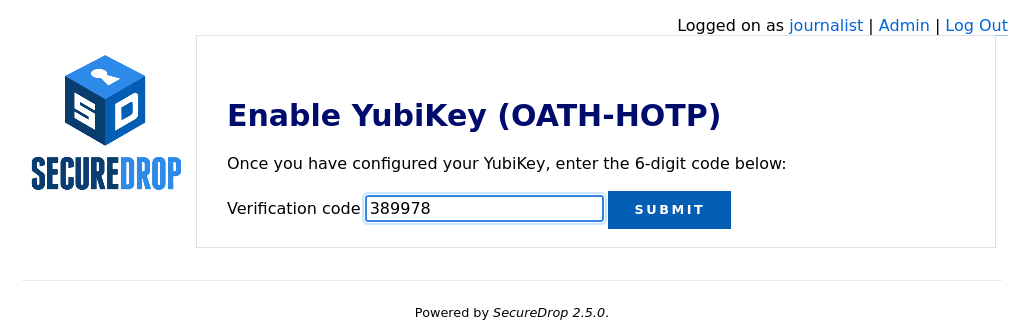
If everything was set up correctly, you will be redirected back to the Admin Interface, where you should see a flashed message that says “The two-factor code for user new username was verified successfully.”.
The Journalist will require their username, passphrase, and two-factor authentication method whenever they check SecureDrop. Make sure that they have memorised their username and passphrase, or stored them in their password manager, and that they can keep their two-factor authentication device secure.