Off-board Administrators and Journalists#
When Journalists and SecureDrop Administrators leave your organization, it is important to off-board them from SecureDrop.
Important
Additional measures may need to be taken if the user’s departure is on unfriendly terms. These measures will vary depending on the circumstances and your own internal incident response procedures, and may include doing a full reinstall of SecureDrop. If you are in such a situation, feel free to contact us for further assistance.
Off-boarding checklist#
Inform the SecureDrop Support team that the user should be removed from any support Signal groups, and indicate if any new staff members should be added.
Delete the user’s account on the Admin Interface.
Retrieve SecureDrop Workstation laptops, Backup drive(s), and any other SecureDrop hardware or materials.
If the user receives email alerts (OSSEC alerts or Daily Journalist Alerts), either directly or as a member of an email alias, remove them from those alerts and set up someone new to receive those alerts.
(Circumstance-dependent) If you have specific concerns that the Submission Private Key has been compromised, you should consider a full reinstall of SecureDrop. At minimum, you should rotate the Submission Key.
Additional steps for off-boarding Administrators#
If the departing user was your primary SecureDrop Administrator, designate the next person who will take over their function. Ideally, your outgoing Administrator will be able to provide as much training as possible on the use and maintenance of the system, as well as on your organizational policies (such as backup strategies, and so on) before they leave; if this is not the case, contact the SecureDrop Support team.
We do not recommend enabling remote management for SecureDrop’s network firewall. However, if your SecureDrop firewall can be accessed remotely, even if only from within your organization’s network, you may want to rotate its login credentials.
Back up and rotate the SSH key to prevent unauthorized SSH access to the Application and Monitor Servers in the event that this user has retained their Admin SSH credentials.
Rotate SSH keys on the SecureDrop servers#
If you are concerned that the user may have a copy of the SSH key, you should rotate the key in the following manner.
Create a new SSH keypair. From the
sd-adminqube, runssh-keygen -t rsa -b 4096
and make sure to change the key name. This is the only parameter you need to change. For example, instead of
/home/amnesia/.ssh/id_rsa, call the key/home/amnesia/.ssh/newkey. You don’t need a passphrase for the key.Copy new public key to the SecureDrop Servers. Copy the public portion of the key to the Application and Monitor Servers by running
scp -O /home/amnesia/.ssh/newkey.pub scp://app
and
scp -O /home/amnesia/.ssh/newkey.pub scp://mon
Add this key to the list of authorized keys. SSH to the Application Server and append this new key to the list of authorized keys by using
cat newkey.pub >> ~/.ssh/authorized_keys
Be sure to use the command as above so that you append the key, instead of replacing the file. While you are still on the Application Server, you can then delete the file
newkey.pubfrom wherever you scp’d it to (i.e. your home directory). Repeat this process with the Monitor Server.Rename SSH keys. Exit all SSH sessions and rename
id_rsaandid_rsa.pub(the old SSH keys) to something else. For example,mv /home/amnesia/.ssh/id_rsa /home/amnesia/.ssh/id_rsa_old mv /home/amnesia/.ssh/id_rsa.pub /home/amnesia/.ssh/id_rsa_old.pub
Then, rename your
newkeyandnewkey.pubtoid_rsaandid_rsa.pub.Test SSH connection. Test that you can still ssh into the Application and Monitor Servers (you can test with
ssh app hostandssh mon host).Restrict SSH access to the new key.
Important
If you have other users who also have SSH access to the Application and Monitor Servers, the next step will revoke their access. Their public keys will have to be re-appended to the
authorized_keysfile on each server, as in step 3.From an
sd-adminqube, runsecuredrop-admin reset_admin_accessThis removes all other SSH keys, except for the new key that you are currently using, from the list of authorized keys on the Application and Monitor Servers.
Rotate the Submission Key#
The Submission Private Key is held on the airgapped Secure Viewing Station, and is not normally accessed by SecureDrop users anywhere but on the Secure Viewing Station. Therefore, we recommend rotating the Submission Key under the following circumstances:
If the user’s departure was not amicable
If the user is still holding on to any Secure Viewing Station USB flash drive or backup
If you have any other reason to believe the Submission Private Key or the entire Secure Viewing Station USB flash drive may have been copied or compromised.
You should still keep the old key on the Secure Viewing Station, or else you will not be able to decrypt submissions that were sent to you while that key was in effect.
You will need:
A LUKS-encrypted USB flash drive
On the Secure Viewing Station#
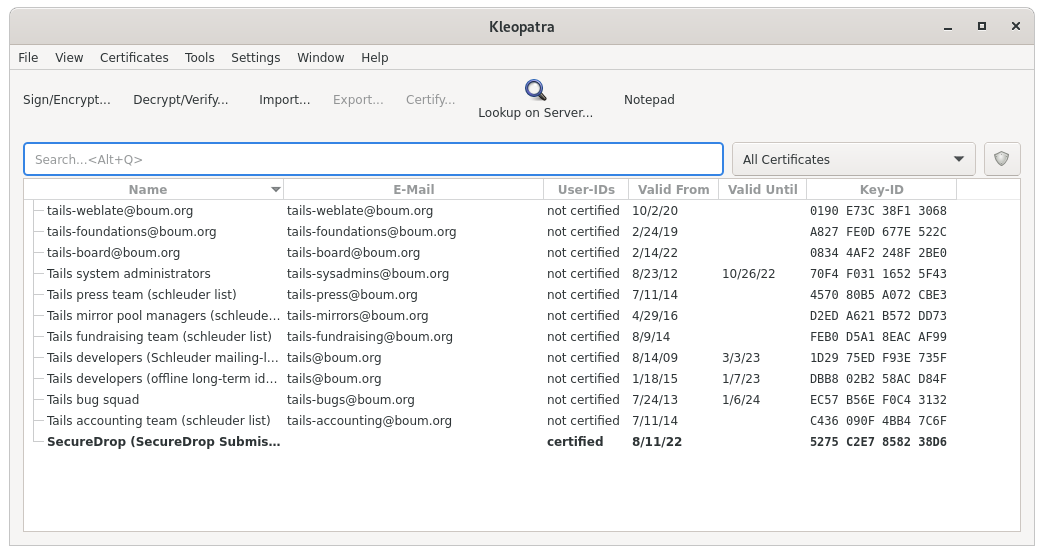
From the Secure Viewing Station Apps Menu, choose Accessories ▸ Kleopatra, and select the Submission Key from the list of available keys.
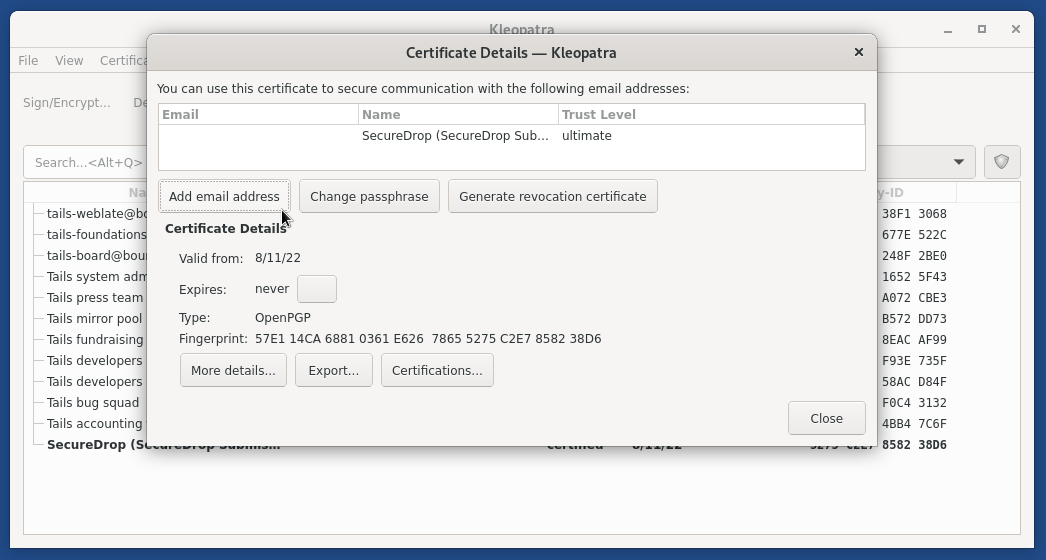
From the details view that appears, click the Add User ID button.
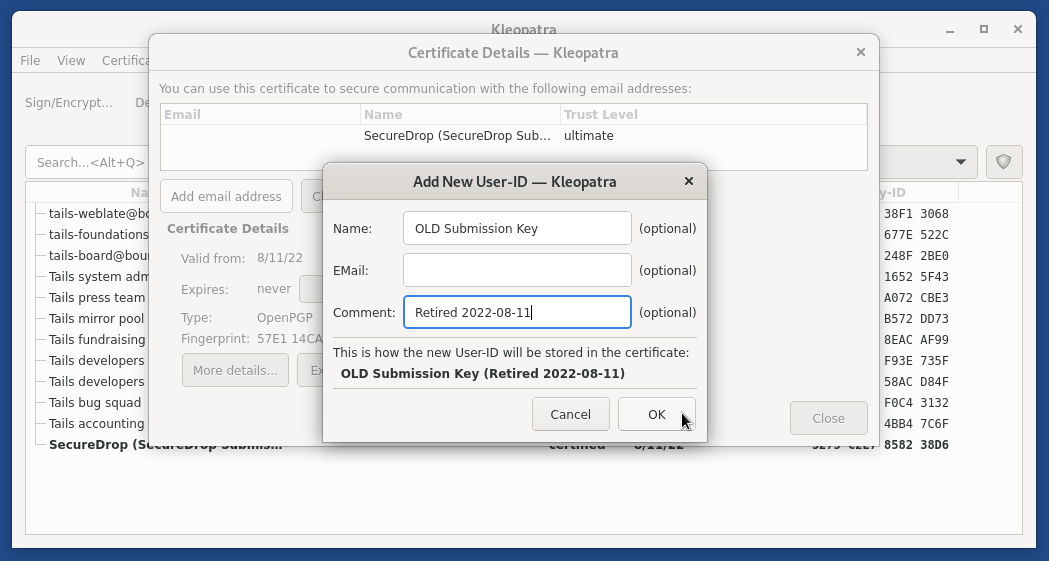
Set the name field to “Old SecureDrop Submission Key - Retired “, and add the date of retirement. Click OK to add this information to the key.
Note
This is a local-only change to stop you from mixing up the old and new keys
Return to the Terminal, then run:
gpg --list-keysIn the output, locate the “Old SecureDrop Submission Key”. It should look similar to this:
Make note of the ID of the key, which is the portion of the key after the slash in the first line. In this example, the key ID would be:
0x1CB396626CA370ABGenerate a revocation certificate, by running the command below (replacing
<KEY_ID>with the ID you noted in the step above):gpg --output revoke.asc --gen-revoke <KEY_ID>
This will launch an interactive prompt, where you can supply the following values:
Import the revocation certificate:
gpg --import revoke.asc
Return to Kleopatra, and make sure the key is now marked as Revoked.
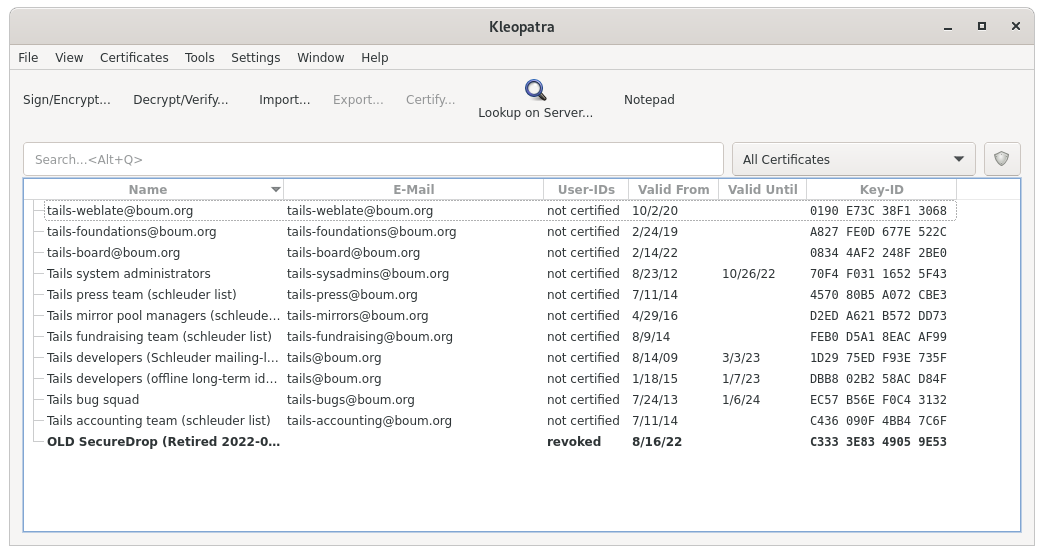
Now follow the instructions to create a new Submission Key. Copy the fingerprint and new Submission Public Key to the encrypted USB flash drive.