
Hardware Recommendations#
Servers#
14th-gen NUC#
We have tested and can recommend the ASUS NUC14RVH. It provides both 22x80 and 22x42 M.2 ports for NVMe SSD storage, as well as a 2.5 inch drive bay for a SATA hard drive or SSD (if using this slot, we recommend choosing an SSD).
The NUC14’s AX211 wireless hardware is not removable. Before installation of the RAM and storage, we recommend that you disconnect the wireless antennae leads from the AX211 component. They’re the wires highlighted in the red box in the picture. Cover the free ends with electrical tape after disconnecting them.
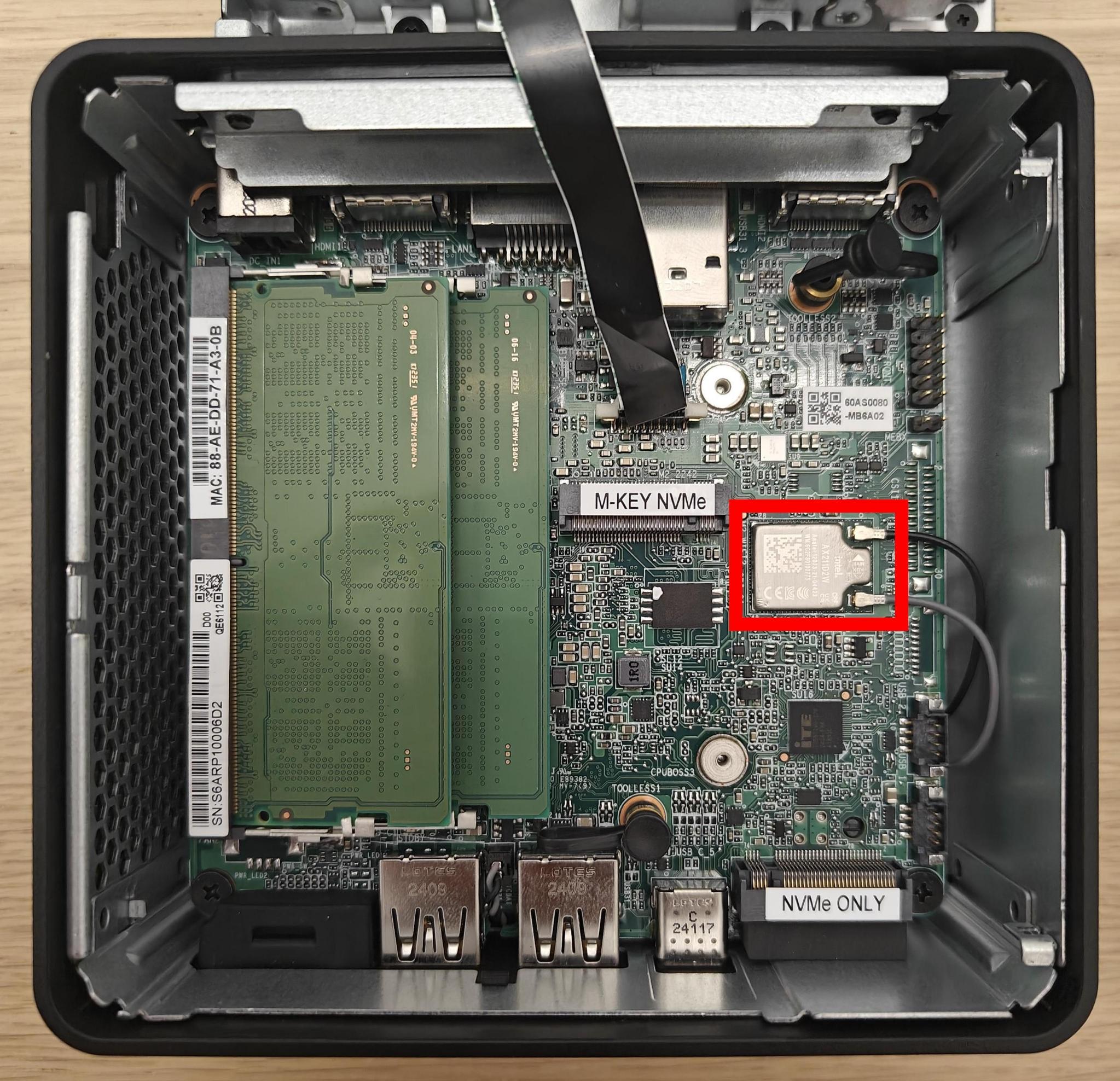
The location of the wireless card within the NUC14#
Note
The wireless card is located underneath the NVMe port
13th-gen NUC#
We have tested and can recommend the ASUS NUC13ANHi5. It provides two M.2 SSD storage options: a 22x80 port for an NVMe drive, and a 22x42 port for a SATA drive. It also has a 2.5 inch drive bay for a SATA hard drive or SSD (if using this slot, we recommend choosing an SSD).
The NUC13’s AX211 wireless hardware is removable. Doing so requires the use of a 5mm nut driver. Before installation of the RAM and storage, we recommend that you remove the wireless card and disconnect the wireless antennae leads from the AX211 component. Be sure to cover the free ends with electrical tape after disconnecting them.
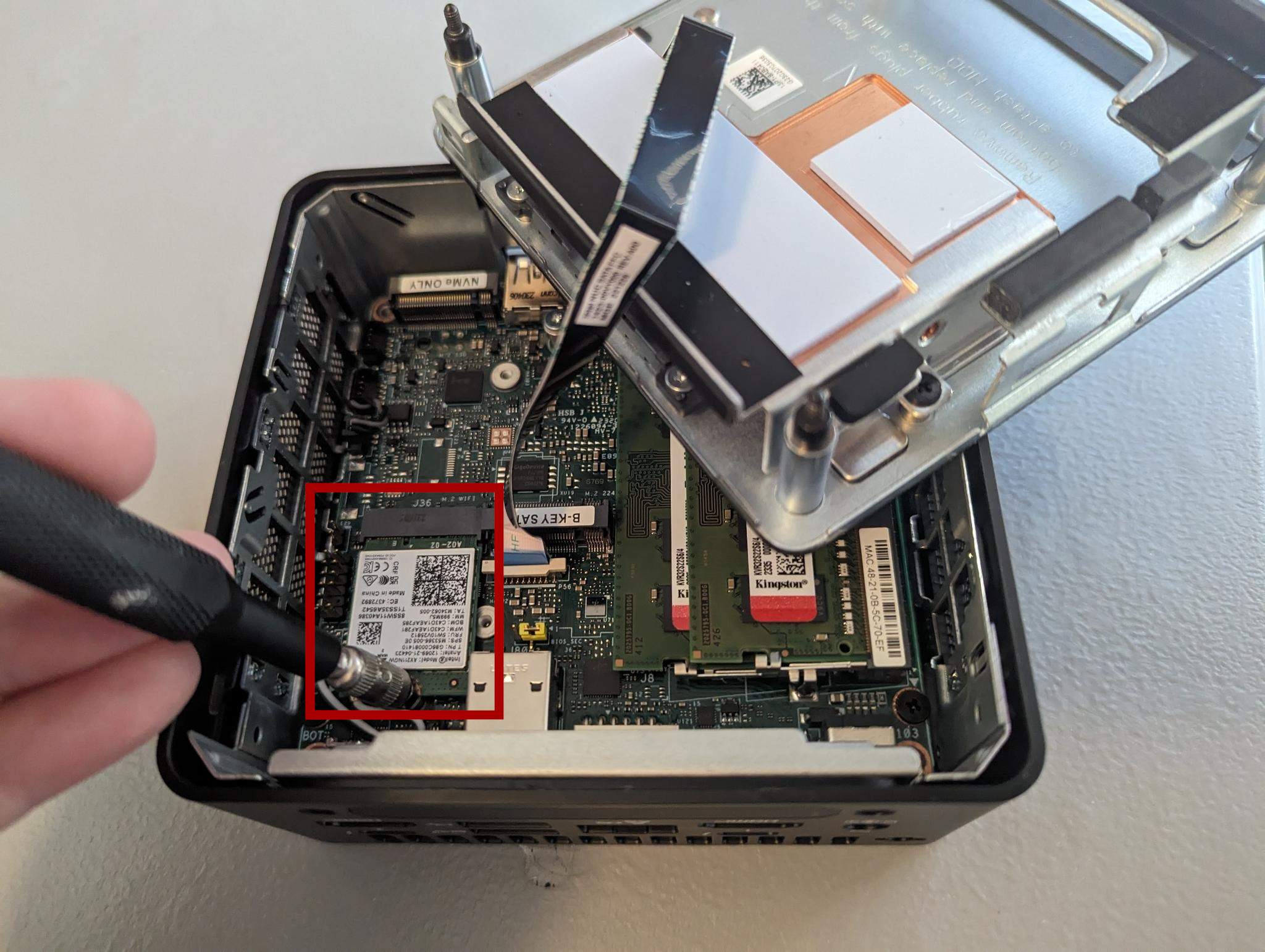
The location of the wireless card within the NUC13#
Note
The wireless card is located underneath the 22x80 NVMe port
12th-gen NUC#
We have tested and can recommend the NUC12WSKi5. It provides two M.2 SSD storage options: a 22x80 port for an NVMe drive, and a 22x42 port for a SATA drive.
The NUC12’s AX211 wireless hardware is removable. Doing so requires the use of a 5mm nut driver. Before installation of the RAM and storage, we recommend that you remove the wireless card and disconnect the wireless antennae leads from the AX211 component. Be sure to cover the free ends with electrical tape after disconnecting them.
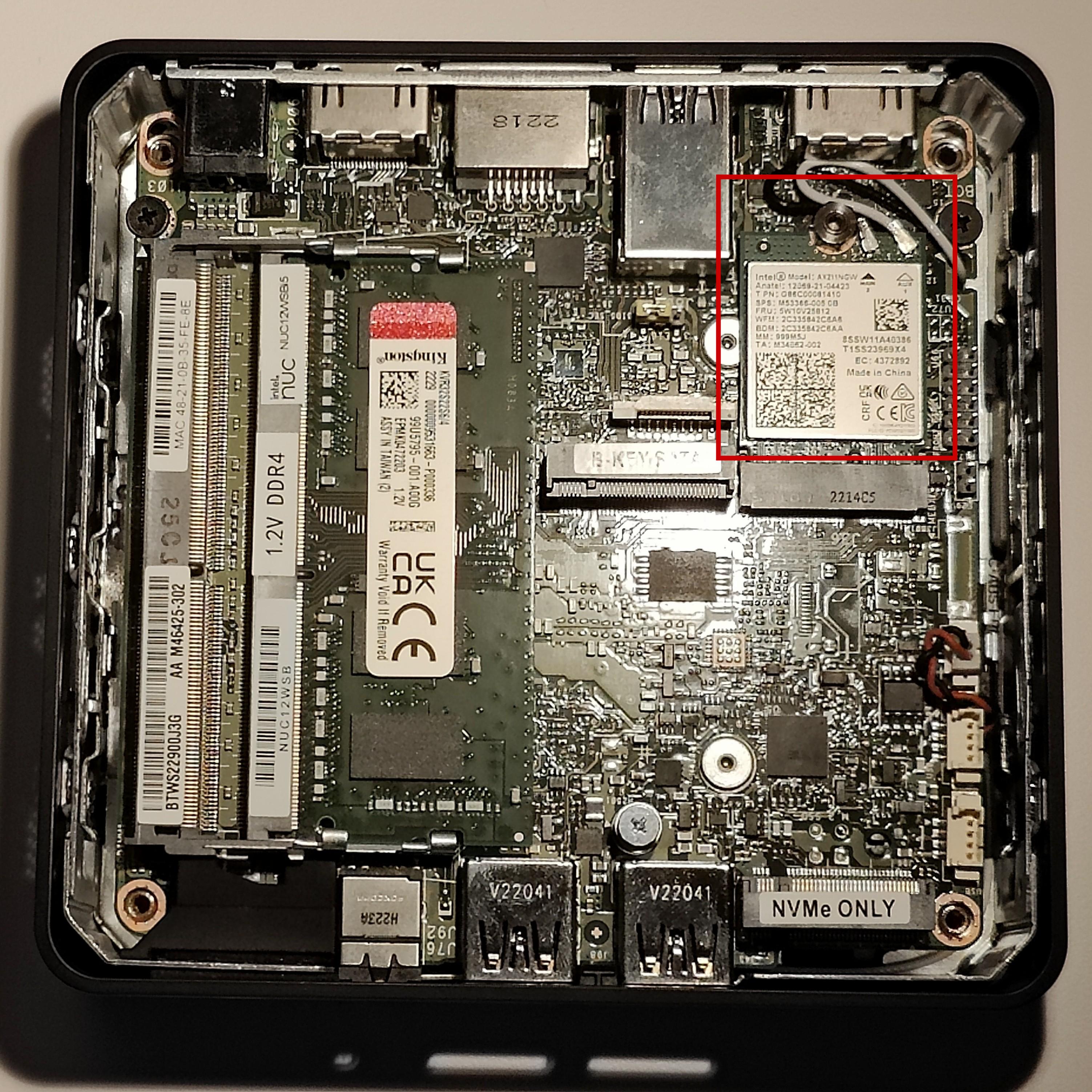
The location of the wireless card within the NUC12#
11th-gen NUC#
We have tested and can recommend the Intel NUC11PAHi3. It provides two storage options: M.2 SSD storage and a 2.5” secondary storage option (SSD or HDD).
The NUC11’s AX201 wireless hardware is not removable. Before installation of the RAM and storage, we recommend that you disconnect the wireless antennae leads from the AX201 component. They’re the black wires highlighted in the red box in the picture. Cover the free ends with electrical tape after disconnecting them.
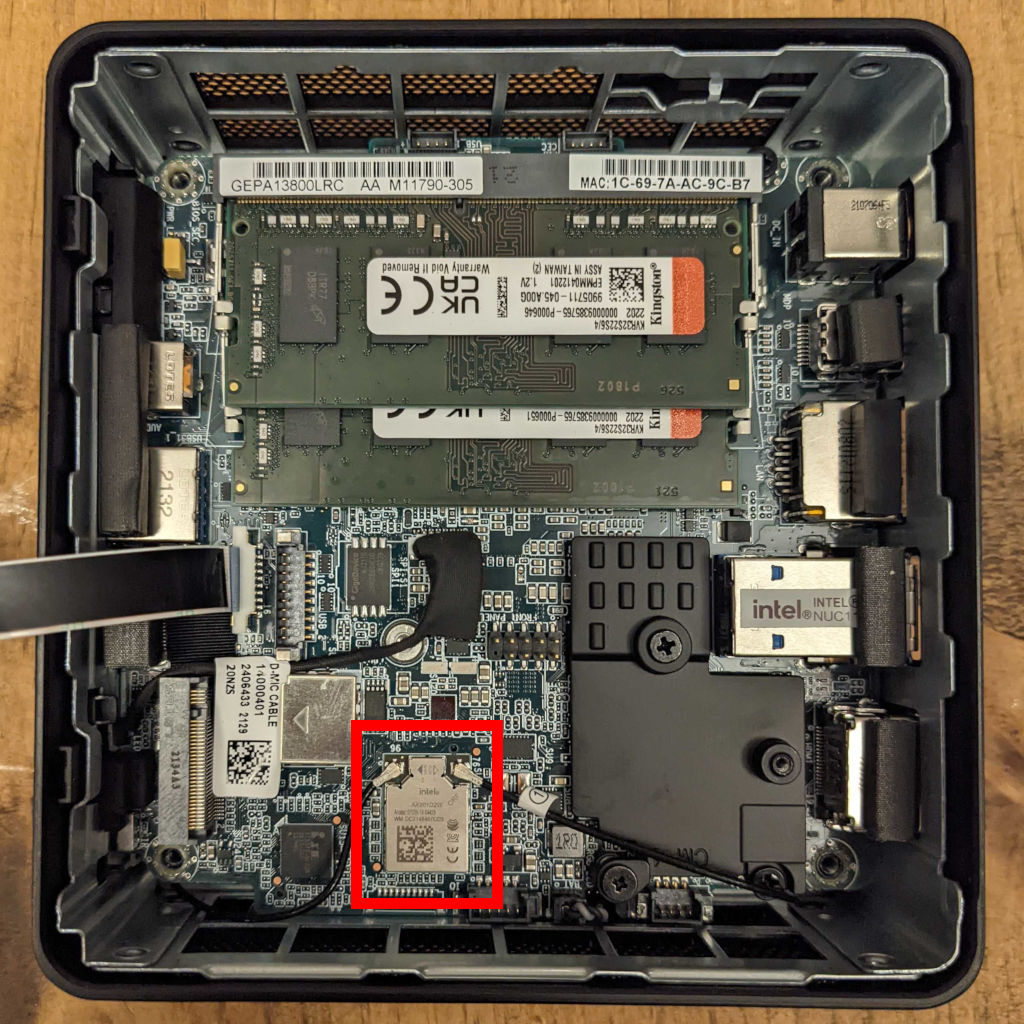
Before the initial OS installation, boot into the BIOS by pressing F2 at startup and adjust the system configuration:
Workstations#
Qubes-certified laptops#
Qubes-certified laptops are certified and tested against Qubes major releases. They must support additional security features beyond the minimal requirements above, such as the use of coreboot in place of proprietary firmware. Where possible, we recommend that you use a Qubes-certified laptop with coreboot for SecureDrop Workstation. A full list of certified computers can be found on the Qubes OS Certified Hardware page.
Note
Some certified computers also support the use of Heads with coreboot, for additional protection against advanced attacks during the boot process. Heads adds a layer of complexity to the overall user experience, but may make sense for you as an option if you have an expectation of those kinds of threats. If you have questions about Heads, or other hardware choices, contact us via Signal`_.
FPF-tested laptops#
In addition to Qubes-certified devices, we develop and test using Qubes-compatible laptops from other vendors. The following models may be used for SecureDrop Workstation, though some level of additional configuration may be required.
Framework 13 (Intel Core Ultra Series 1)#
The Framework 13 laptop with an Intel Core Ultra Series 1 processor is a recommended option for the SecureDrop Workstation beginning with Qubes 4.2.
You can either order a preassmbled system, or you can customize your build and assemble the laptop yourself once it is delivered, which is useful as either a cost-saving measure or in the event that you wish to customize the ports or internal components.
Framework laptops are designed to be repairable, customizable, and user-servicable, and have grown to be a popular choice with Qubes users and SecureDrop developers.
You will want to ensure you are using the latest BIOS version available. Instructions for checking the BIOS version and performing an upgrade for the Intel Core Ultra Series 1 models can be found on this page in the Framework knowledgebase.
Note
You’ll want to be sure to install Qubes OS using the kernel-latest option, available from the initial boot menu (GRUB) prior to booting to the Qubes OS installer.
Framework 13 (13th-generation)#
The Framework 13 laptop with a 13th generation Intel processor is a recommended option for the SecureDrop Workstation beginning with Qubes 4.2.
You can either order a preassmbled system, or you can customize your build and assemble the laptop yourself once it is delivered, which is useful as either a cost-saving measure or in the event that you wish to customize the ports or internal components.
Framework laptops are designed to be repairable, customizable, and user-servicable, and have grown to be a popular choice with Qubes users and SecureDrop developers.
You will want to ensure you are using the latest BIOS version available. Instructions for checking the BIOS version and performing an upgrade for the 13th generation models can be found here in the Framework knowledgebase.
Lenovo ThinkPad X1 Carbon (10th-generation)#
The 10th-generation ThinkPad X1 Carbon with a 12th-generation Intel Core processor is a recommended option for the SecureDrop Workstation beginning with Qubes 4.1. If you plan to use it, you will want to ensure the BIOS is up-to date by following these instructions: Automatic BIOS updates.
You’ll need to have a USB-to-Ethernet adapter on hand in order to apply Qubes updates, which will enable Wi-Fi and fix glitchy video rendering and cursor performance.
Lenovo ThinkPad T14 (2nd-generation)#
The 2nd-generation ThinkPad T14 with an 11th-generation Intel Core processor is a recommended option for the SecureDrop Workstation beginning with Qubes 4.1. If you plan to use it, you will want to ensure the BIOS is up-to date by following these instructions: Automatic BIOS updates.
The Ethernet and Wi-Fi controllers may not work without one-time manual configuration, as documented here.
The Qubes Hardware Compatibility List (HCL)#
The Qubes Hardware Compatibility List (HCL) is a community-maintained list of hardware that has been tested by Qubes users. It consists of individual reports generated and submitted by Qubes users across the world. Anyone can attempt to install Qubes on their computer, then report back on whether or not it can be installed, if there are any issues, and overall, what the experience is like.
There are some benefits to this list:
A much wider selection of hardware is tested, because anyone can contribute to the list
There are sometimes multiple reports for a particular system, which lets you compare and feel confident the results are consistent
It tells you exactly what is and isn’t working within the system, so you can decide if a device you own will function well enough to suit your needs
Devices get tested across many different configurations and Qubes versions
However, there are some things to consider:
Reports are not verified for their accuracy by either the Qubes team or Freedom of the Press Foundation
Reports correspond to a specific Qubes OS version, and may not reflect breaking changes or expanded hardware support in the most recent Qubes OS version
It’s important that you update the BIOS of your laptop prior to installing SecureDrop Workstation: for more details see Automatic BIOS updates
For the best experience, we recommend choosing a Qubes-certified laptop, or a laptop that we have directly tested (in that order); however, if none of those suit your needs, or if you want to see if your existing hardware might be Qubes compatible, the HCL is a good choice.
Network firewall#
We recommend a 4 NIC network firewall and currently provide setup instructions for pfSense and OPNSense. Suitable models include:
the Protectli Vault 4-Port, running OPNSense configured with coreboot.
the Netgate SG-4100 running pfSense Plus.
the Netgate SG-6100 running pfSense Plus. This device is overspecced for SecureDrop’s purposes, but can be used if the other cheaper firewalls can’t be procured.
An acceptable alternative that requires more technical expertise is to configure an existing hardware firewall.
USB drives#
For USB flash drives with physical write protection, we have tested the Kanguru SS3, and it works well with and without encryption.
Known end-of-life dates#
For the server, we previously recommended the NUC10i5FNH, NUC8i5BEK, and NUC7i5BNH. If you are still using one of these models, we recommend replacing them with one of the newer NUC models listed above.
For the hardware we recommend, you can find a list of end-of-life dates below:
Hardware |
End-of-Life (EOL) |
|---|---|
ASUS NUC14RVH |
Not yet confirmed |
ASUS NUC13ANHi5 |
Not yet confirmed |
Intel NUC12WSKi5 |
April 05, 2026 |
Intel NUC11PAHi3 |
September 30, 2026 |
Thinkpad T Series |
EOL dates vary; consult with manufacturer |
TekLager APU4D4 |
Not yet confirmed |
Netgate SG-4100 |
Not yet confirmed (will be 2 years after sales stop) |
Netgate SG-6100 |
Not yet confirmed (will be 2 years after sales stop) |